

Downloading the app
You can download and install the Anchorage Digital application directly through Apple’s App Store. Search for “Anchorage Digital” or use the link provided by your account executive.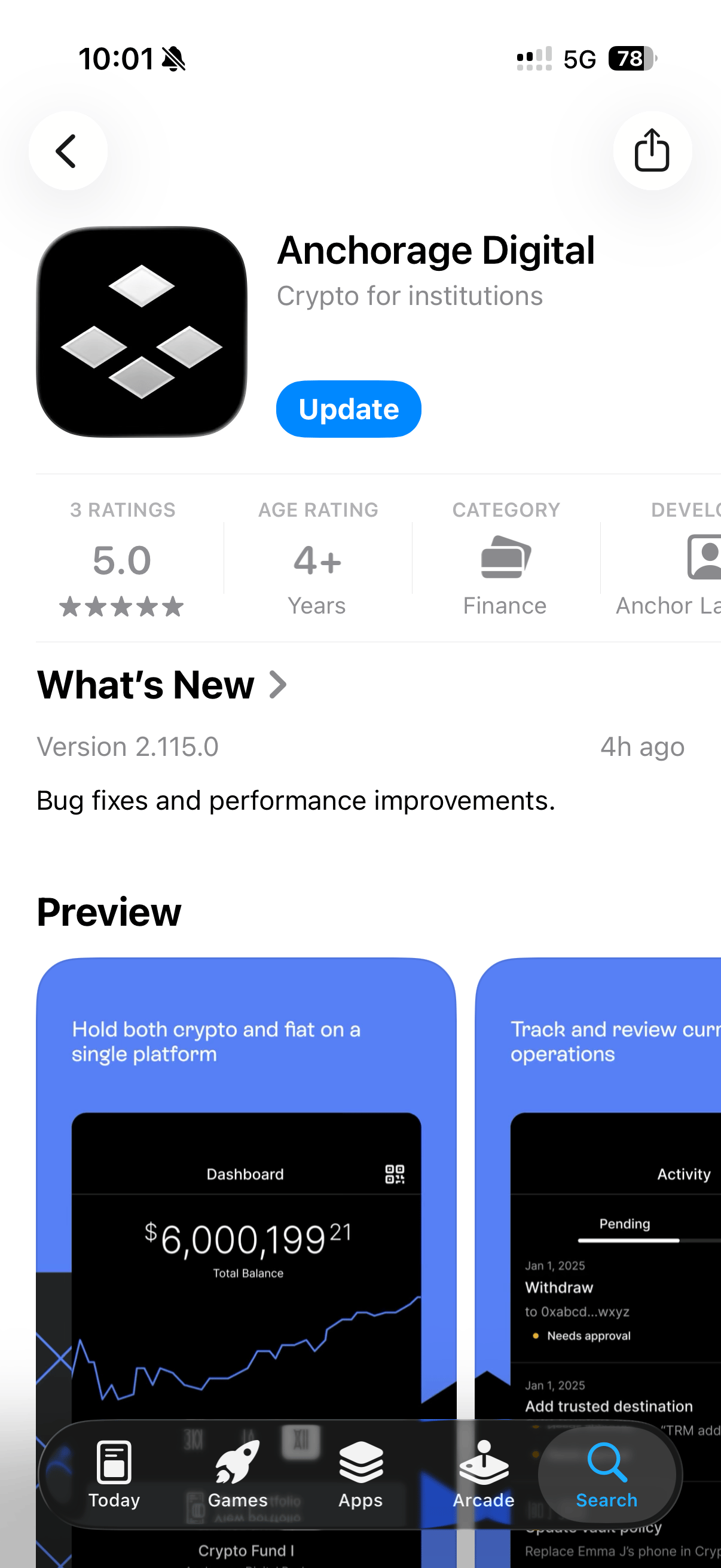
- iPhone: iPhone SE (2nd gen), iPhone XS, and later models
- iPad: iPad (7th generation), iPad mini (5th generation), iPad Air (3rd generation), and later models
Migrating from the private app
Users who installed the Anchorage Digital app via a private link before March 2026 may be on the privately distributed version. Existing private apps remain fully functional and provide the same experience as the public App Store version. However, if you need to install the app on a new device, download it directly from the App Store.If you lose access to any app or need a new install on a new device, download the app directly from Apple’s App Store.
Migration steps
Update your current app
Open the App Store, navigate to your account, and update the Anchorage Digital app to the latest version.
Verify your app version
Open the updated app and go to Settings. Ensure your version is 2.106.0 or later.
Downloading the private app (legacy)
For users in countries where the public App Store listing was not available, the app was previously distributed via Apple Business Manager (ABM).App availability by region
For security reasons, the private app was distributed via the B2B app store, Apple Business Manager (ABM), rather than being publicly available.- If your organization has an ABM account: Anchorage Digital can provide guidance on setting up ABM with Apple.
- If your organization does not have an ABM account: App redemption codes can be generated by the Anchorage Digital ABM account.
Downloading in unsupported countries
If your organization does not have an ABM account and your Apple ID is registered outside the United States:Change your Apple ID region
In the App Store, tap the Profile Icon, then your Account Name. Tap Country/Region, then Change Country or Region. Select United States and use Anchorage Digital’s address for billing. This change can be temporary—you may switch back once the app is downloaded.
Download the app
Open the download link provided by Anchorage Digital in a Safari browser to initiate the download.
Users with Apple IDs linked to Apple subscriptions (e.g., Apple TV) may not be able to change the region. In that case, create a new Apple ID using a different email address.
Creating a new Apple ID (alternative)
If you cannot change your Apple ID region, create a new one:Sign out of your current Apple ID
Go to Settings, tap your Apple ID name and avatar, then tap Sign Out.
Create a new Apple ID
Tap Don’t have an Apple ID or forgot it?, then Create Apple ID. Use an email address different from the one already in use and follow the prompts.
Updating the app
By default, most iOS apps are configured to receive automatic updates. To manually update or force an immediate update:Check for updates
Scroll down to find the Anchorage Digital app. If an update is available, an Update button will appear next to the app name.